Adding the self-signed certificate as trusted to a browser
Install SSL certificate from an untrusted website into the Certificates snap-in using IE
Please read the following contents carefully
-
The browser informs you of a problem with the security certificate of the website.
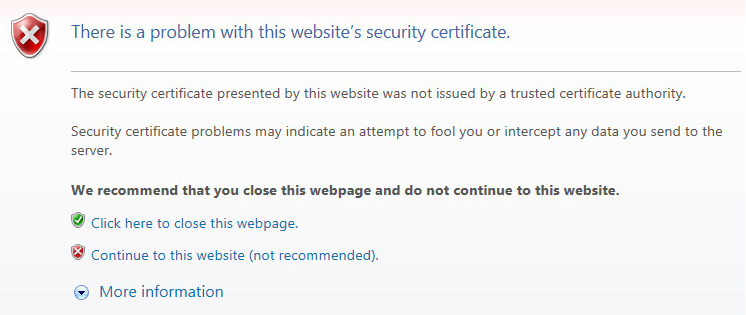
Certificate error message
- 1. Select the Continue to this website (not recommended) link.
The Certificate Error message appears in the address bar.
- 2. Click Certificate Error.
The Untrusted Certificate window opens.
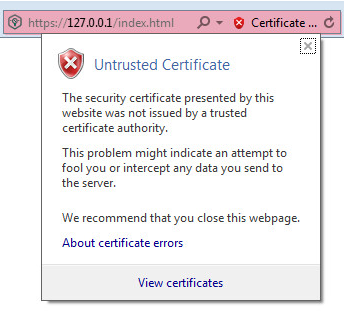
Untrusted Certificate window
- 3. Select the View certificates link.
The Certificate window opens with information about the Kaspersky CyberTrace certificate.
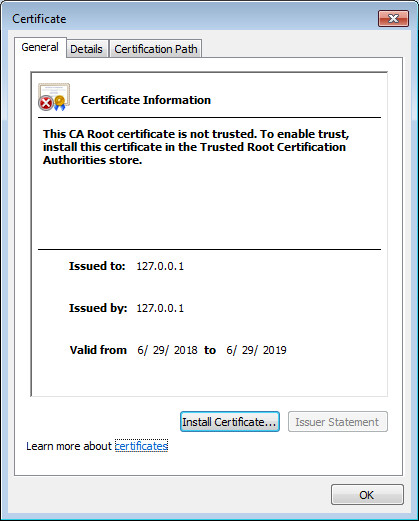
Certificate window
- 4. Select the Details tab, and then click Copy to File to create a local copy of the certificate.
The Certificate Export Wizard starts.
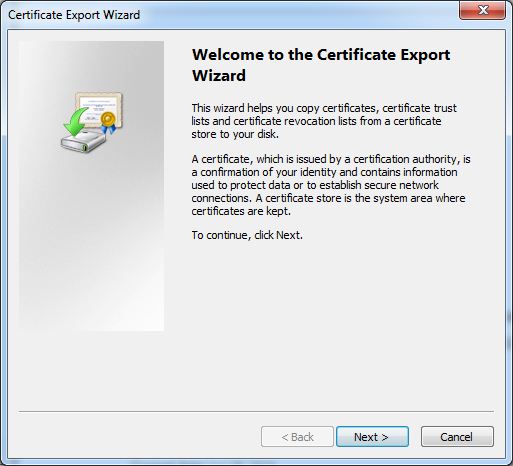
Certificate Export Wizard
- 5. Follow the Wizard instructions.
Use the default Wizard settings during the certificate export.
To start the certificate import process through Microsoft Management Console (MMC):
- 1. From the Search box, navigate to the Run box, and then enter
mmc.You can now run MMC as Administrator.
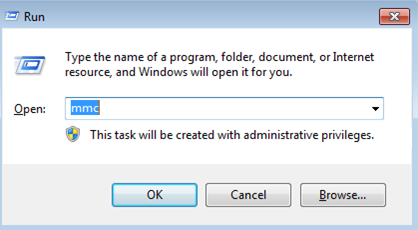
Running the MMC
- 2. In the MMC-based console that opens, select File > Add/Remove Snap-in.
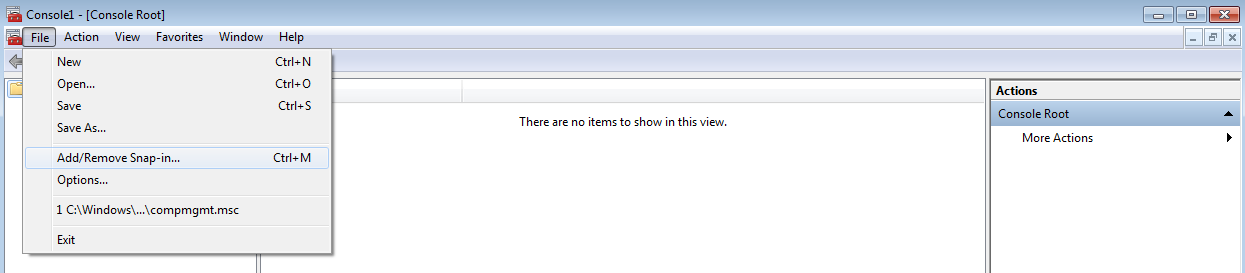
Selecting Add/Remove Snap-in
The Add or Remove Snap-ins window opens.
- 3. In the Available snap-ins list, select Certificates, and then click Add.

Adding a Certificates snap-in
The Certificates snap-in window opens.
- 4. Select Computer account, and then click Next.
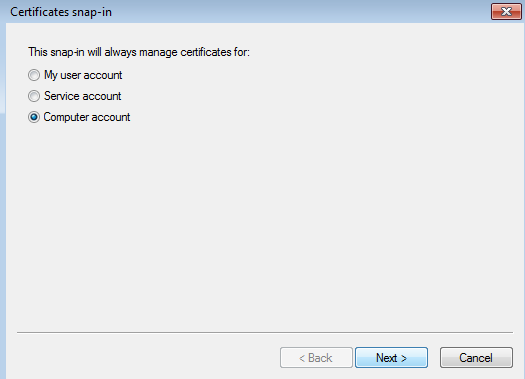
Selecting Computer account
In the Select Computer window that opens, click Finish.
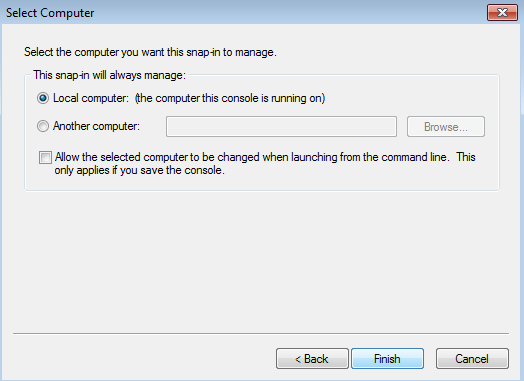
Selecting Local computer
- 5. In the tree pane, select Certificates (Local Computer) > Trusted Root Certification Authorities, right-click Certificates, and then select All Tasks > Import.
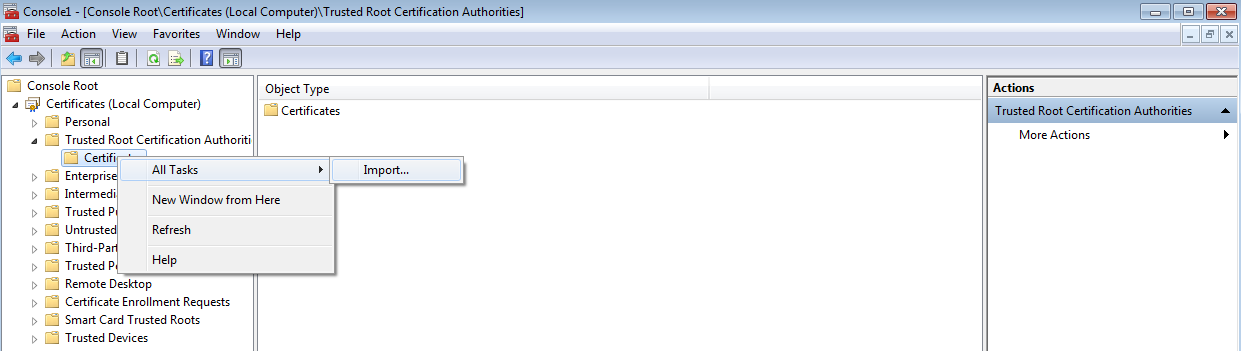
Selecting Import
The Certificate Import Wizard starts.
To add the saved certificate to the Trusted Root Certification Authorities store:
- 1. On the Welcome page of the Wizard, click Next.
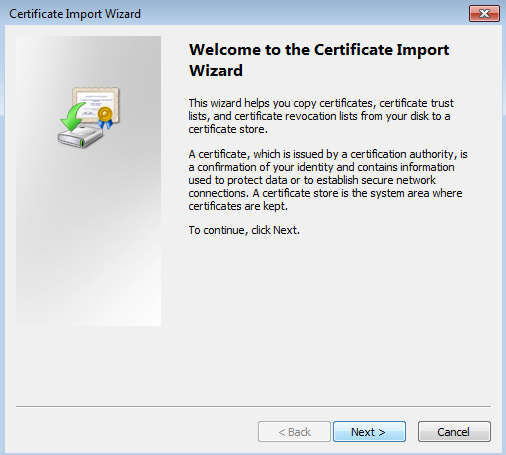
Certificate Import Wizard
- 2. Click Browse and select the certificate that was saved in the "To make the self-signed certificate for Kaspersky CyberTrace Web trusted when using Internet Explorer:" procedure above.
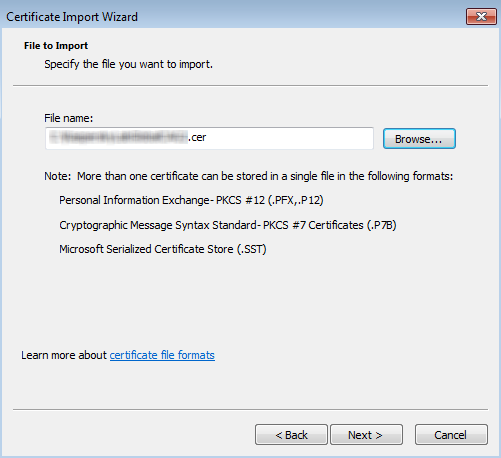
Importing the previously saved certificate
- 3. On the next page of the Certificate Import Wizard, click Next.
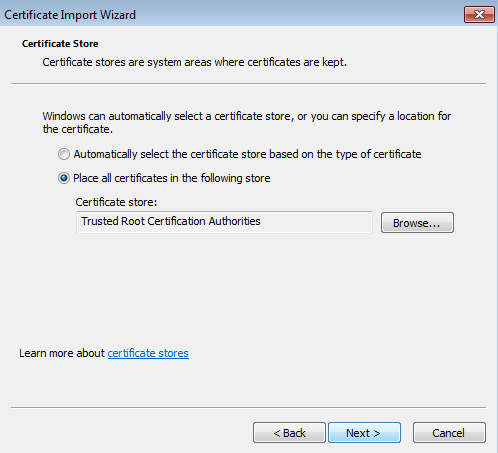
Selecting a certificate store
- 4. On the last page of the Certificate Import Wizard, click Finish.
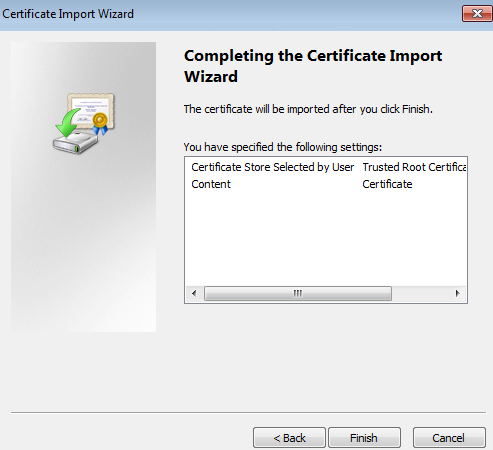
Completing the certificate import
- 5. Close the MMC-based console and restart the browser.
The security problem (untrusted certificate) is resolved, as shown in the figure below.
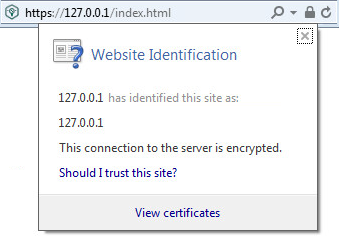
Website identification
Updated January 2026 Ñ@†€
Ñ@†€
Published on: Saturday, 10. January 2026 (445 reads)
Copyright © by YakChat

[ Go back ]