Security popup for https pages
Turning off the popup: Do you want to view only the webpage content that was delivered securely?
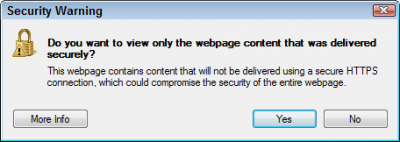
Many webpages are created to handle secure transactions. You don’t want anybody snooping when you enter a password, for example.
But there’s a problem when one portion of the web page handles the password, but another portion of the page displays something that doesn’t need to be secure: a weather report, or Time zones for example.
In engineering lingo, that page is serving mixed content. Microsoft’s engineers know that some malicious sites can mix secure and insecure content to trick you, perhaps tricking you into entering your password on the wrong page.
But if you’re tired of seeing that message constantly appear, disable it by following these steps:
- Click the Start menu and open Internet Explorer.
- From Internet Explorer’s top menu, click Tools and choose Internet Options. (In some versions of Internet Explorer, the Tools option resembles a little “gear” symbol.)
- Click the Security tab.
- Click the Internet zone. (This zone, the “globe” icon, is chosen by default.)
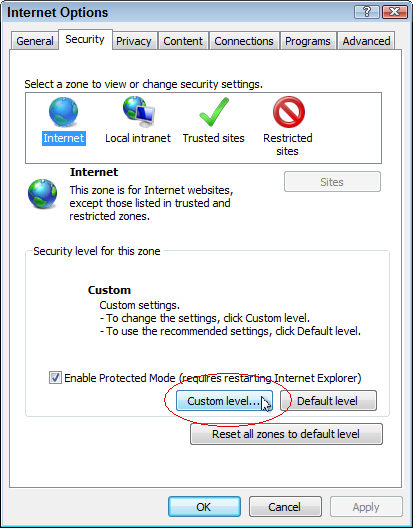
- Click the Custom Level button, shown below.
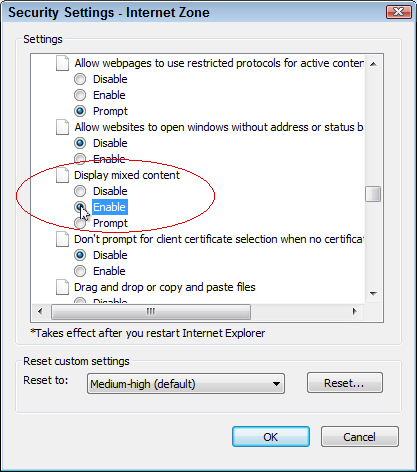
1. Scroll down the Settings window to the Miscellaneous section, find the Display Mixed Content area, and choose Enable, shown below. (For a safer option, choose Disable, which leaves out the extra, non-secured content — you’ll probably never miss seeing it.)
- 2. Click OK, and click Yes at the warning prompt, if necessary.
- 3. Click OK to close the window.
Whether you choose Enable or the safer Disable option, that annoying message will no longer appear.
Updated January 2026 Ñ@†€
Ñ@†€
Published on: Saturday, 10. January 2026 (692 reads)
Copyright © by YakChat

[ Go back ]